
Set up AI keys & formulas in GPT for Sheets
Connect OpenAI, Claude, Gemini, Grok, DeepSeek, Mistral & Perplexity inside Google Sheets — then run ready-to-copy AI formulas for data cleanup, web research, images, lead enrichment and SEO. Activation takes about 30 seconds.
Activate your plan in 30 seconds
Your subscription is already on our side. The only thing left is to tell the add-on to sync it — a single click inside Google Sheets.
Open a Google Sheet
Use a spreadsheet you own (or create a new one). Sign in with the same Google account.
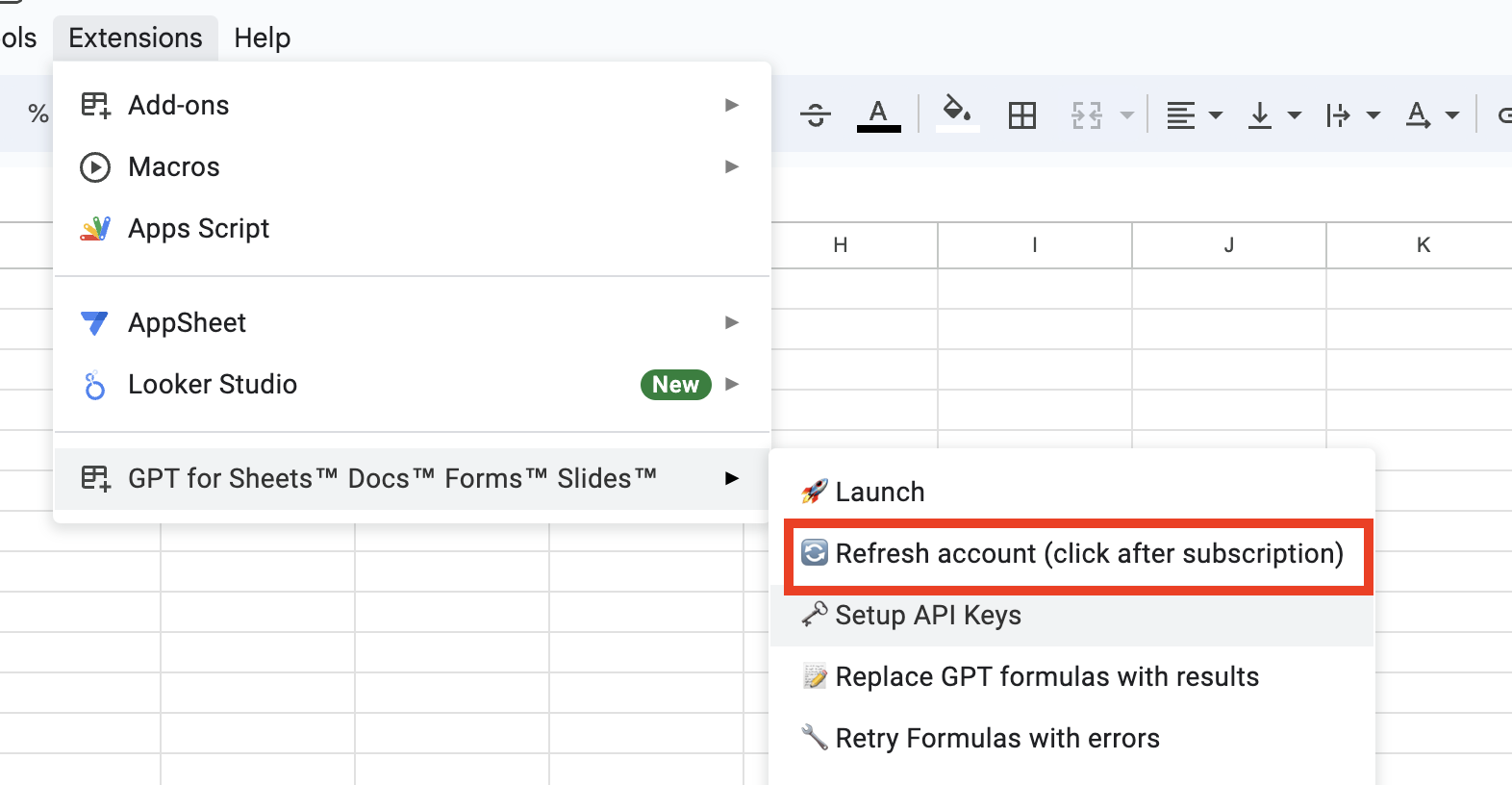
Click Refresh Account
This pulls in your new paid plan.
Start using AI
Type =GPT("Write a tagline for a coffee shop") in any cell — you’re live.
Do I need my own API key? No — not to get started.
Your plan comes with AI credits, so GPT formulas work right away. Connecting your own OpenAI, Claude, Gemini, Grok, DeepSeek, Mistral, Perplexity, or OpenRouter key is optional — useful if you want unlimited model choice or to run on your own provider billing. The steps below are there when you want them.
Connect your own AI key
Want to use your own provider account or unlock every model? Pick a provider and follow the steps. Each one takes about two minutes.
Models: the latest OpenAI GPT models — from fast, low-cost options to top-quality reasoning.
- Sign in to the OpenAI platform and click Create new secret key.
- Make sure your OpenAI billing has at least $1 (add ~$5 to reach Tier 1 and unlock the latest OpenAI models). This is billed by OpenAI, separate from your DocGPT plan, and usage cost is typically very low.
- Copy the key to your clipboard.
- In Sheets: , then click Set Up OpenAI Key.
- Paste the key, click Check to validate, then Save.
- Open the model dropdown in the same section and pick your model — a fast, low-cost option (ideal for bulk rows) or a top-quality reasoning option (best quality, slower & pricier).
=GPT("Write a catchy title for a coffee shop")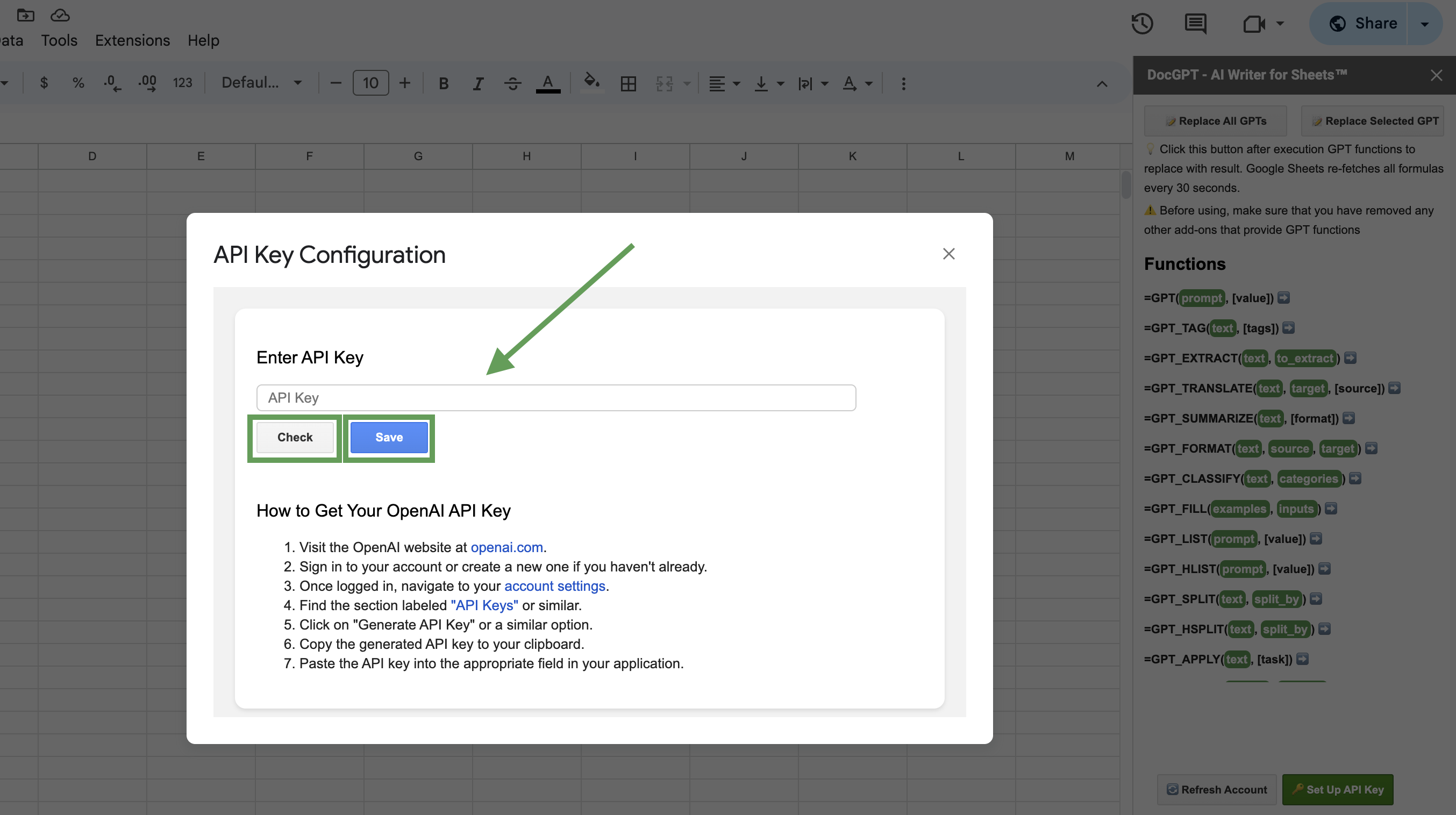
Models: the latest Claude models — from fast, low-cost to deepest reasoning.
- Sign in to the Anthropic console and generate an API key (getting-started guide).
- Copy the key.
- In Sheets: , then click Set Up API Key and open the Claude section.
- Paste the Claude key, click Check, then Save.
- Open the model dropdown in the same section and pick your model — a faster, cheaper Claude (great for spreadsheet work) or the most capable Claude (deep analysis, but slower & more expensive).
=CLAUDE("Summarize this in one sentence: " & A1)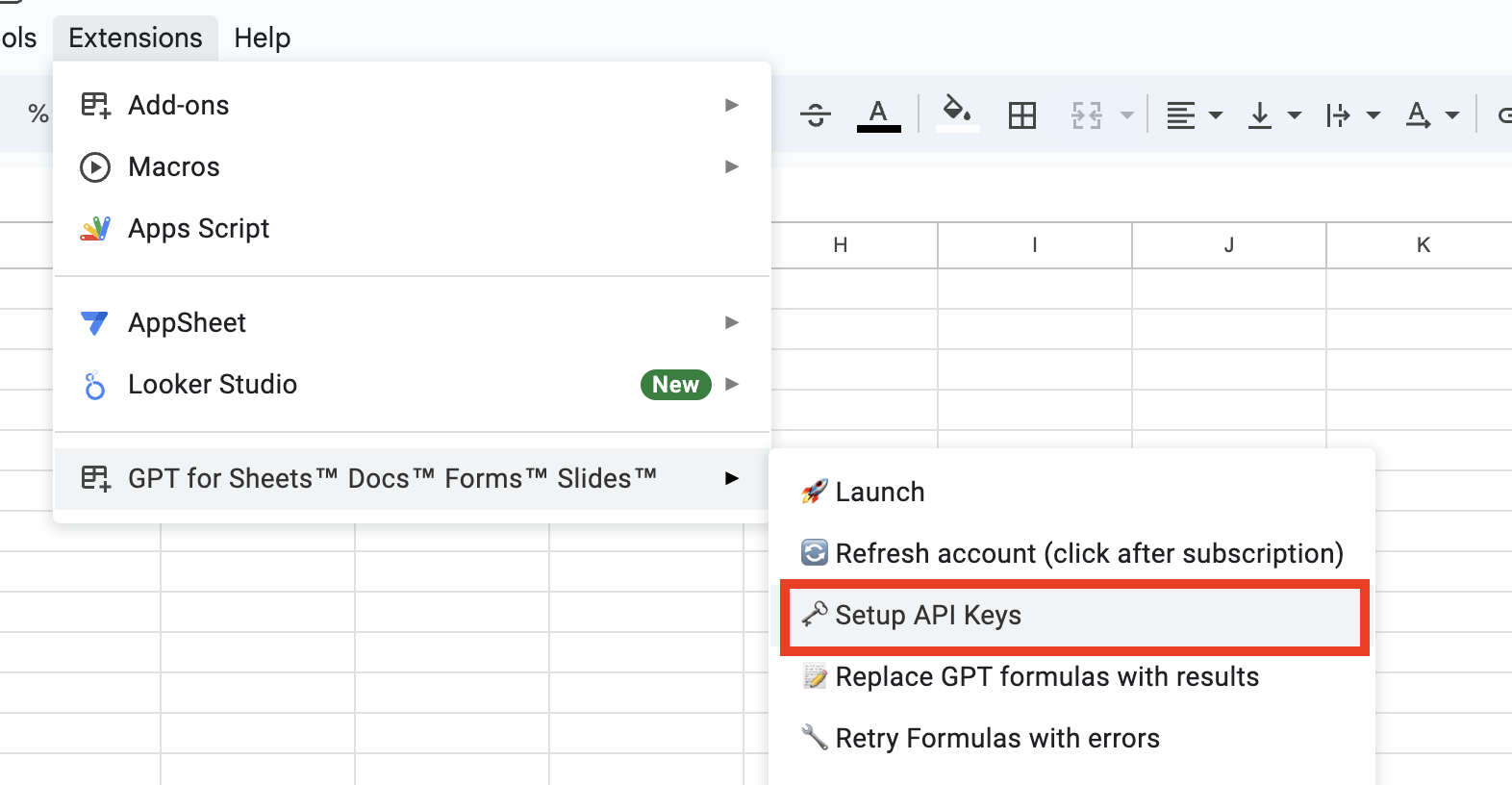
Models: the latest Gemini models — from fast Flash to most-capable Pro.
- Open Google AI Studio and create an API key.
- Copy the key.
- In Sheets: , then click Set Up API Key and open the Gemini section.
- Paste the Gemini key, click Check, then Save.
- Open the model dropdown in the same section and pick your model — Gemini Flash (fast & cheap, great for bulk) or Gemini Pro (most capable, deeper reasoning).
=GEMINI("List 3 blog title ideas about " & A1)
Models: the latest Grok models — from fast all-round to heavy reasoning.
- Sign in to the xAI console and create an API key (add a little credit to your xAI account if prompted).
- Copy the key.
- In Sheets: , then click Set Up API Key and open the Grok section.
- Paste the Grok key, click Check, then Save.
- Open the model dropdown in the same section and pick your model — the fast all-round Grok (recommended) or the heavy reasoning Grok (deepest reasoning, slower & pricier).
=GROK("Write a witty product description for " & A1)
Models: DeepSeek-V4-Pro and DeepSeek-V4-Flash — with Chat & Reasoner (thinking) modes.
- Sign in to the DeepSeek platform and create an API key (top up a small balance if prompted).
- Copy the key.
- In Sheets: , then click Set Up API Key and open the DeepSeek section.
- Paste the DeepSeek key, click Check, then Save.
- Open the model dropdown and pick your model — DeepSeek-V4-Flash (fast & cheap) or DeepSeek-V4-Pro (most capable); use Reasoner mode for hard reasoning.
=DEEPSEEK("Translate to French: " & A1)
Models: the latest Mistral models — from fast, low-cost to flagship quality.
- Create an account at console.mistral.ai.
- Open the API keys page and create a key, then copy it.
- In Sheets: , then click Set Up API Key and open the Mistral section.
- Paste the Mistral key, click Check, then Save.
- Open the model dropdown in the same section and pick your model — a small Mistral (fast & cheap) or a flagship Mistral (top quality).
=MISTRAL("Classify the sentiment of: " & A1)
Models: Sonar Pro, Sonar Reasoning Pro, Sonar Deep Research, Sonar.
- Generate an API key on the Perplexity API settings page (getting-started), then copy it.
- In Sheets: , then click Set Up API Key and open the Perplexity section.
- Paste the key, click Check, then Save.
- Open the model dropdown in the same section and pick your model — Sonar (fast & cheap web answers) or Sonar Pro / Reasoning Pro (deeper research).
=PERPLEXITY("What are the top YouTube videos today?")
Models: one key for 300+ models — OpenAI, Claude, Gemini, Grok, Llama, DeepSeek & more.
- Create an API key at openrouter.ai/keys and add a little credit.
- Browse openrouter.ai/models and copy the model slug you want (e.g.
openai/gpt-5). - OpenRouter runs straight from a formula — no Set Up dialog needed. Pass the model, your key, and the prompt. (Requires an active Pro or higher plan.)
=OPEN_ROUTER("openai/gpt-5", "your_openrouter_key", "Write a tagline for a coffee shop")
Search & scrape the web from a cell
Pull live web data, run searches, and read any page — straight into your spreadsheet.
GPT_WEB_*, SERP and WEB_* run on your included plan — no extra key. BRAVE_SEARCH_WEB and GOOGLE_SEARCH_API take that provider’s key directly in the formula.
🤖 Ask the live web no extra key
=GPT_WEB_SEARCH("What are the top news headlines today?")=GPT_WEB_ACCESS("Find the latest news about " & A1)=GPT_WEB_SEARCH_TABLE("Top 5 cryptocurrencies with current price and market cap")🔍 Search results (SERP)
=SERP("site:instagram.com Yoga gmail.com", 40)=BRAVE_SEARCH_WEB("artificial intelligence news", "your-api-key")=GOOGLE_SEARCH_API("latest tech news", "your-api-key", "your-search-engine-id", 5)📄 Scrape a page no extra key
=WEB_TITLE("https://stripe.com")=WEB_DESCRIPTION("https://stripe.com")=WEB_HEADINGS("https://stripe.com")=WEB_URLS_DATA(A2:A20)Generate & read images
Create images from a prompt, or have AI describe and read any image — right in your cells.
🎨 Generate images
=GPT_CREATE_IMAGE("a minimalist coffee shop logo, flat vector", "1024x1024")=GEMINI_CREATE_IMAGE("a cozy cafe interior, watercolor", "16:9")👁 Read an image (vision)
=GPT_VISION("https://example.com/photo.jpg", "What is in this image?")=GPT_VISION(A2, "Extract any text you see")Clean, classify & transform data with a formula
The bread-and-butter functions for spreadsheet work — translate, summarize, extract and classify, applied across rows.
🌐 Translate & rewrite
=GPT_TRANSLATE(A2, "Spanish")=GPT_APPLY(A2, "fix grammar and spelling")✂️ Summarize & extract
=GPT_SUMMARIZE(A2, "one sentence")=GPT_EXTRACT(A2, "email address")🏷️ Classify & tag
=GPT_CLASSIFY(A2, "Positive, Neutral, Negative")=GPT_TAG(A2, "bug, feature request, question")📝 Generate lists & tables
=GPT_LIST("5 blog ideas about " & A2)=GPT_TABLE("Top 5 EU capitals", "City, Country, Population")=GPT_FILL(A2:B4, A5:A20)Enrich & research leads — without leaving Sheets
A Clay-style workflow right in your spreadsheet: find and verify emails, pull contacts, and research companies with a single formula.
WEB_* and GPT_WEB_* functions run on your included plan — no extra key needed.
📧 Find emails
=HUNTER_GET_EMAIL_BY_DOMAIN("your-api-key", "reddit.com", "Alexis", "Ohanian")=LEADMAGIC_FIND_EMAIL("your-api-key", "Bill", "Gates", "microsoft.com")✅ Verify emails
=HUNTER_EMAIL_VERIFIER("your-api-key", "patrick@stripe.com")=LEADMAGIC_VALIDATE_EMAIL("your-api-key", "user@example.com")🏢 Contacts from a domain
=APOLLO_GET_CONTACTS("your-api-key", "company.com")=PROSPEO_GET_EMAILS("your-api-key", "company.com")=HUNTER_DOMAIN_SEARCH("your-api-key", "stripe.com")👤 Enrich from LinkedIn
=PROSPEO_GET_EMAIL_BY_LINKEDIN("your-api-key", "https://linkedin.com/in/username")=LEADMAGIC_PERSONAL_EMAIL("your-api-key", "https://www.linkedin.com/in/williamhgates")📊 Company intel
=LEADMAGIC_COMPANY_FUNDING("your-api-key", "gong", "gong.io")=LEADMAGIC_COMPETITORS("your-api-key", "gong.io", "https://www.linkedin.com/company/gong-io", "Gong")📍 Local business data (Google Maps)
=GOOGLE_MAPS_GET_PLACES("API_KEY", "34.0522,-118.2437", 1000, "restaurant", "", 20)SEO & content production
Draft SEO content, plan strategy, and research keywords — at spreadsheet scale.
SEO_BLOG, SEO_OUTRANK, SEO_STRATEGY) run on your included plan. Keyword-research functions use a DataForSEO login & password passed in the formula.
✍️ Write SEO content
=SEO_BLOG("Best espresso machines 2026", "Professional", "English")=SEO_OUTRANK("https://competitor.com/post", "Friendly", "English")=SEO_STRATEGY("espresso machine, coffee grinder", "English")🔎 Keyword research
=GOOGLE_KEYWORD_IDEAS("espresso machine", "login", "password")=GOOGLE_RANKED_KEYWORDS("competitor.com", 100, "login", "password")=GOOGLE_RELATED_KEYWORDS("espresso machine", "login", "password")🔗 Index in Google
=GOOGLE_INDEXING("https://docgpt.ai/docs/")Pro tip: lock in your results to save credits
Google Sheets re-runs formulas when you refresh or every minute or two. Once you’re happy with an output, select the cells and click Replace All GPTs (or Replace Selected) in the sidebar. This turns the formula into plain text so it won’t keep recalculating — and won’t keep spending credits.
Troubleshooting
Find your issue by topic — most fixes take under a minute. Still stuck? Live chat (bottom-right) is one message away.
Activation & plan
I subscribed but my plan isn’t recognized (it still asks me to upgrade)
Click Refresh Account under — this syncs your plan after any subscribe or plan change. Make sure you’re signed into Google with the same email you paid with. If you use several Google accounts, Google may attribute the add-on to the wrong one — open a separate Chrome profile with just the paid account and refresh.
I paid with the wrong email / need to move my subscription
Use a personal Gmail with the add-on (company/Workspace emails often block add-ons). To transfer a subscription to another account, contact support via live chat or email and we’ll move it for you.
Out of requests & limits
“You’re out of requests this month” / free trial used up
Your monthly allowance resets at the start of each billing period. To keep going now, upgrade your plan for a higher quota, or connect your own API key (Set Up API Key) to bypass the bundled limit.
“Limit per minute has reached” / rate-limited when filling many rows
Recalculating hundreds of GPT cells at once trips the per-minute limit. Wait about a minute and let cells recalculate in smaller batches instead of dragging the formula down hundreds of rows at once.
“Exceeded maximum execution time” / the function times out
Google Sheets caps each custom function at 30 seconds. Use a faster model (Mini / Nano / Flash) and split long prompts into smaller cells so each call finishes in time. Editing the cell (add a space) re-triggers the call.
“Service invoked too many times for one day”
A Google account limit (≈20k calls/day for gmail.com, 100k/day for Workspace), not ours. Wait for the 24-hour reset or use a different Google account.
SERP, SEO or Maps functions stop returning data
SERP() is throttled to one call every 20 seconds — space them out. DataForSEO keyword functions stop after ~40 calls on the free plan, and Google Maps allows ~100 free queries/day — top up those provider accounts to continue.
Your own API key
“Please set up your API key” / “API key is required”
Open , paste the key into the matching provider section, click Check, then Save. Each provider (OpenAI, Claude, Gemini, Grok, DeepSeek, Mistral, Perplexity) has its own field.
My key won’t validate / “Invalid API key”
Re-copy the key from the provider console with no extra spaces, confirm it’s active and the provider account has billing/credits, and pick a model your account can access. Re-run Check, and only Save once it reports the key is valid.
“You exceeded your current quota” / “model does not exist or you do not have access” (own OpenAI key)
An OpenAI tier/billing limit on your own key. Add at least $1 (ideally $5) to your OpenAI billing to reach Tier 1, then recreate the key and retry. On an included-credits plan you can ignore this entirely.
Where do I get each provider’s API key?
OpenAI: platform.openai.com/api-keys · Claude: console.anthropic.com · Gemini: aistudio.google.com · Grok: console.x.ai · DeepSeek: platform.deepseek.com · Mistral: console.mistral.ai · Perplexity: perplexity.ai/settings/api.
Models
A yellow “deprecated model” warning appears
The selected model is kept only for backward compatibility. For new work pick a current model from the dropdown (e.g. the latest OpenAI, Claude, Gemini or Grok model). Leave the old one only if an existing sheet depends on it.
Authorization & access
“Authorization is required” / “you do not have access to this add-on”
Usually a Google account restriction. Use a personal Gmail (Workspace admins often block add-ons — or ask your admin to allow it). If you’re already on a personal account, reinstall the add-on, or open a separate Chrome profile with just that one account and a fresh sheet.
I’m signed into multiple Google accounts
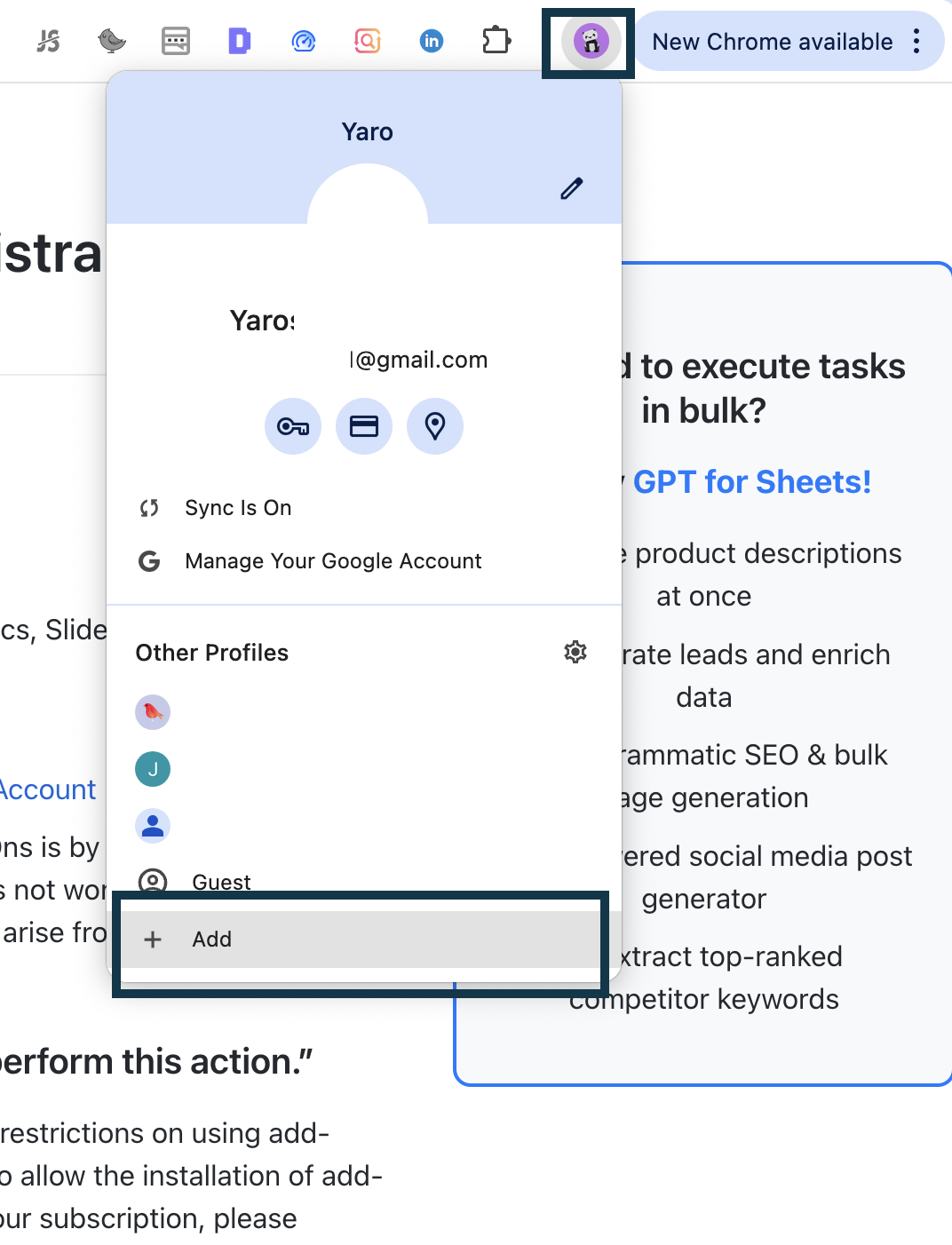
Google’s API can confuse accounts in one Chrome profile. Create a dedicated Chrome profile for the single Gmail you use with the add-on. Clearing cookies and re-logging in also helps.
“You must be the owner of the sheet”
Custom functions can’t read a non-owner editor’s identity. Make a copy of the sheet so you own it, set up your key there, then anyone with Editor access can use the functions with that key.
SEND_EMAIL, GOOGLE_INDEXING or YouTube returns an authorization link
These features need a one-time Google permission. Click the Authorize link shown in the cell/dialog, grant access, then re-run the function. (For indexing, the active email must be an Owner of the property in Google Search Console.)
Formulas, results & loading
Results change or disappear on refresh / credits get used when I’m not working
Google Sheets re-runs formulas on refresh and periodically. Once you’re happy with an output, select the cells and click Replace All GPTs / Replace Selected in the sidebar to freeze results as static text — no more recalculation or credit spend.
“#NAME? Unknown function GPT” or every cell shows #ERROR
Usually another installed add-on registers the same GPT() name. Remove other AI/GPT add-ons, refresh the page, then re-launch via .
“Formula parse error”
Wrap text in quotes (=GPT("hi") or =GPT(A1), not =GPT(hi)), check argument order, and use your locale’s separator (, vs ;) and decimal format.
Functions stuck on “Loading”, blank sidebar, or Extensions shows only “Help”
Give the add-on ~30 seconds to load after opening the sheet, then reopen the menu. If it persists: clear cache/cookies (or use a fresh Chrome profile), remove conflicting GPT add-ons, and re-launch the sidebar.
Empty result, “Prompt is required”, or a timeout / network error
Make sure the prompt and any referenced cells aren’t blank. Empty completions and timeouts are usually transient — re-run the formula. For “Unable to verify subscription”, refresh the page so the add-on re-checks your plan.
Still stuck? See the full troubleshooting guide or open the live chat at the bottom-right of the page.